This article walks you through how to cancel Avidon subscriptions made through the web. This article does not apply to purchases made through Apple App Store or Google Play Store; mobile app purchases will need to be canceled directly through the Google Play or Apple subscription managers.
How to Access the Web Billing Portal and Your Subscription
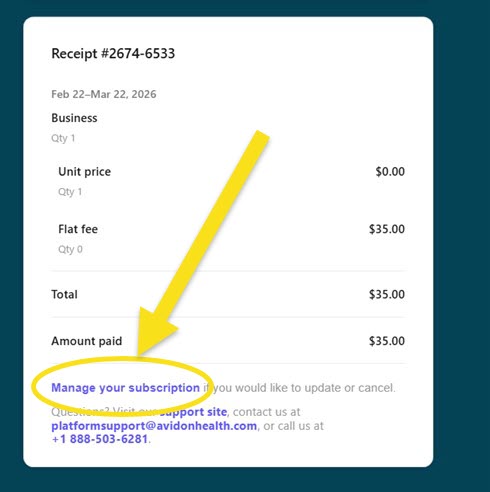
Locate your purchase receipt email from Avidon and click the “Manage your subscription” link in the email:
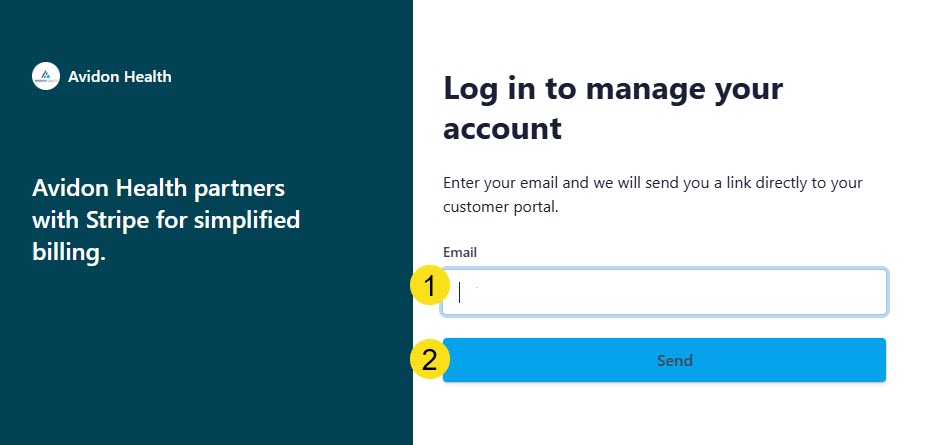
This will direct you to the billing portal where you can enter your email (1), click Send (2), and automatically be delivered to your billing portal:
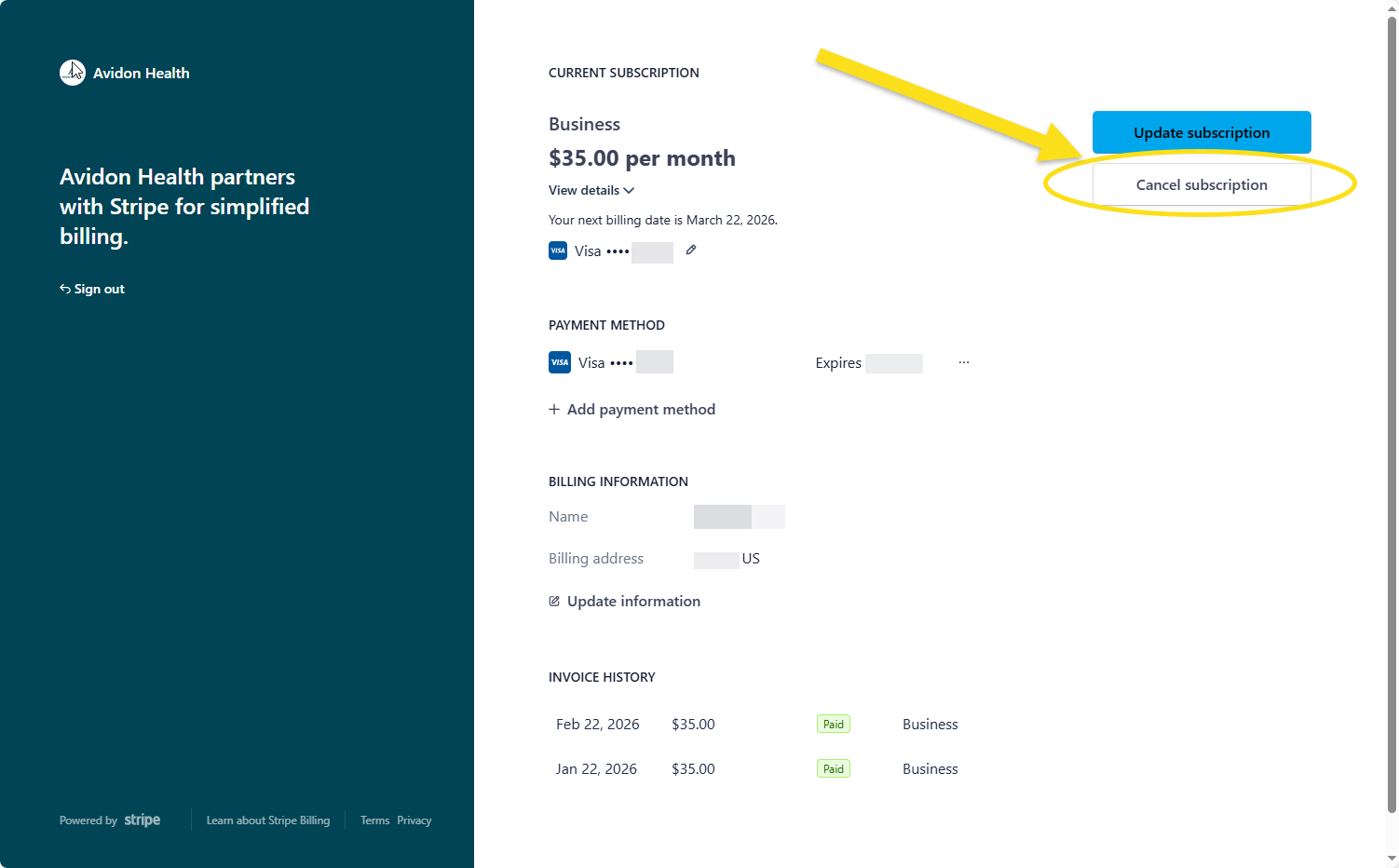
Click the “Cancel subscription” button in the top-right corner of the dashboard:
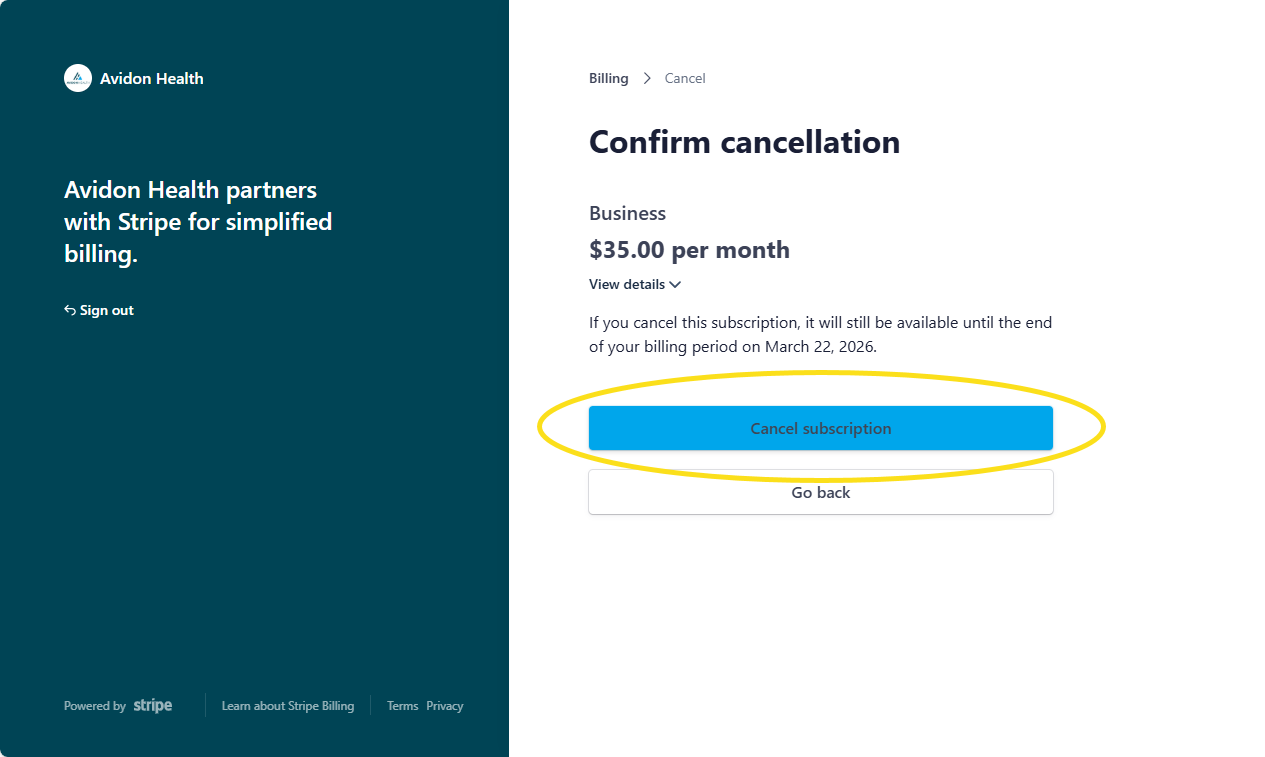
Review the confirmation screen and proceed by clicking the Cancel subscription button:
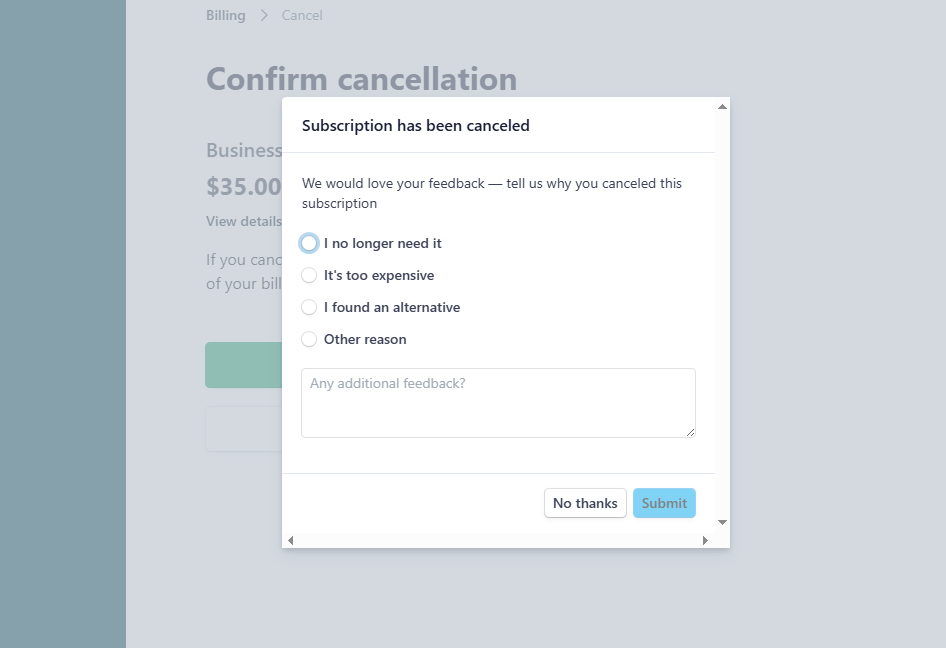
If you want, provide feedback on why you are canceling and submit, or click "No thanks" and complete the cancelation:
After Cancellation
Your subscription status will update in the billing portal and you will see an option to “Don’t cancel subscription” if you change your mind before the billing period ends.
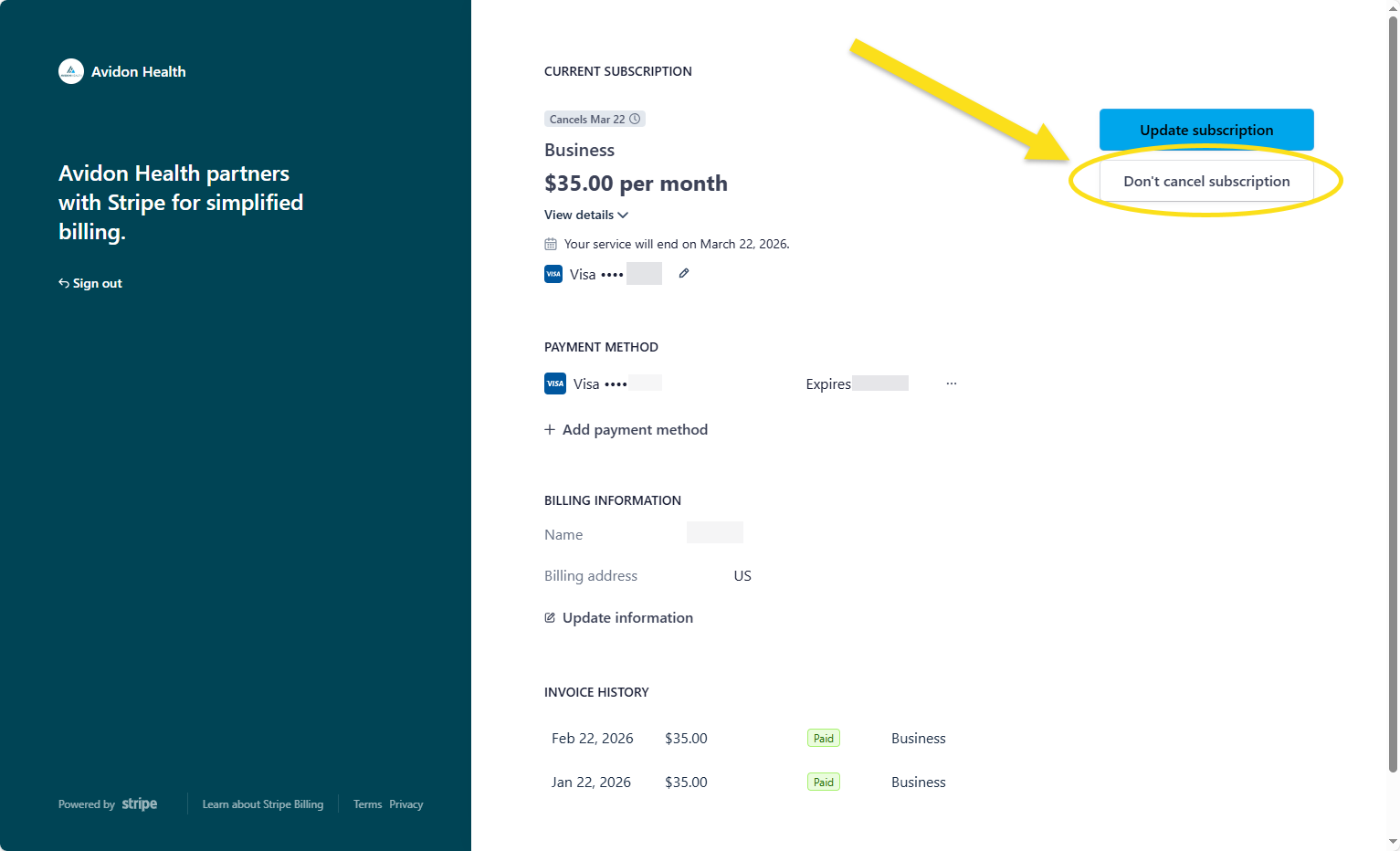
Your access will continue until the end of your current billing cycle.
Important Notes
- Cancellation must be completed through the Stripe Billing Portal (not within the Avidon app).
- The login process uses a secure, email-based authentication link (no password required), consistent with supported authentication methods.
- If you cannot locate your receipt email, contact Avidon Support for assistance.
Was this article helpful?
That’s Great!
Thank you for your feedback
Sorry! We couldn't be helpful
Thank you for your feedback
Feedback sent
We appreciate your effort and will try to fix the article